Low Vision Technology for Kids: Tools and School Supports
Parents often hear “your child has low vision” and immediately wonder what school will look like next week, next month, and next year. Low vision can affect reading, writing, navigating the classroom, seeing the board, using a tablet, and even joining games at recess. The good news is that the right tools and supports can make a big difference, often quickly.
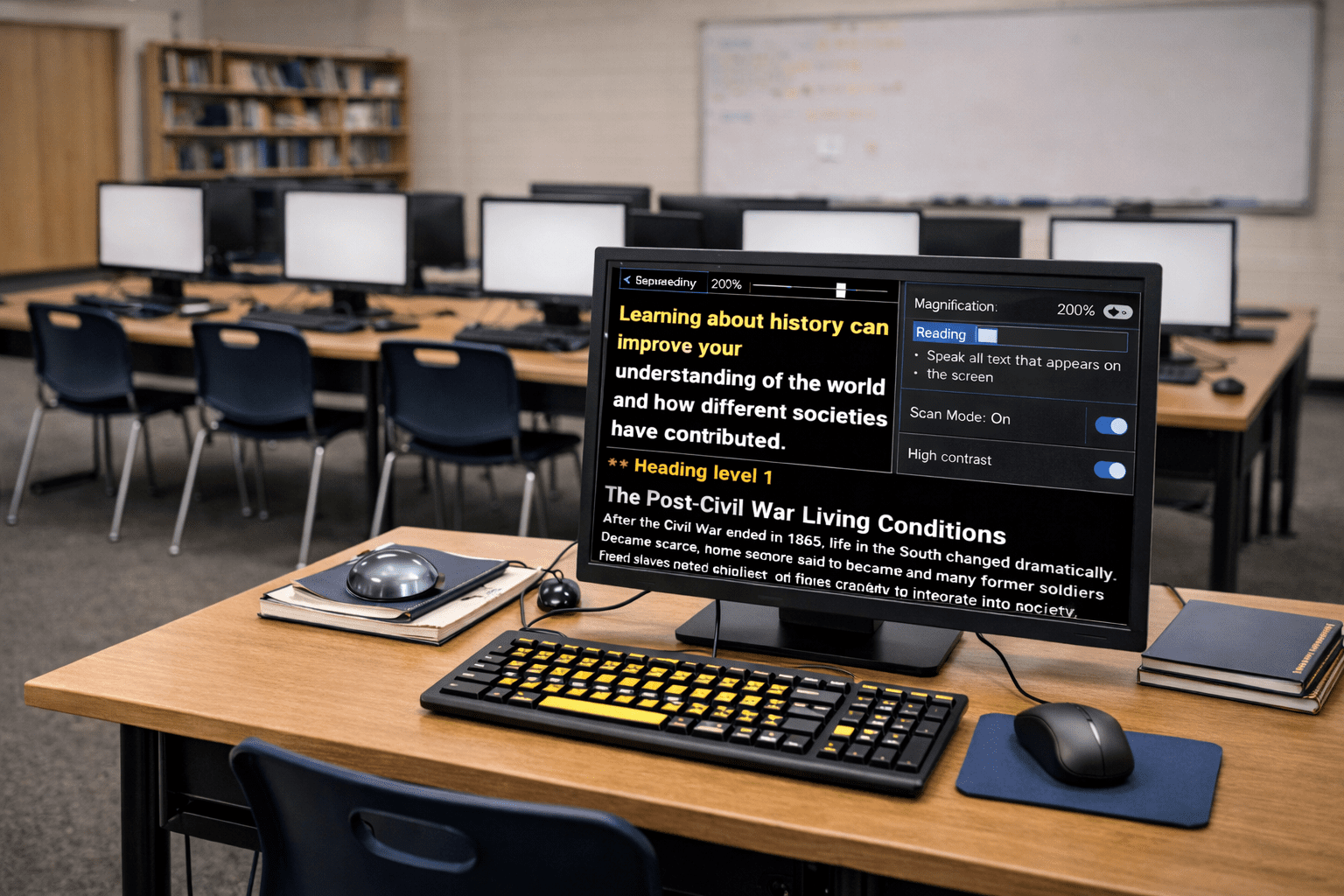
Low vision technology for kids is not one single device. It is a toolkit that can include screen readers, magnification, large print, high-contrast settings, and classroom accommodations. When these tools are matched to your child’s vision needs and taught well, they can help your child keep up academically and feel more confident socially.
Understanding Low Vision Tech for Kids
Low vision means a child has a vision impairment that cannot be fully corrected with standard glasses, contacts, or surgery and that affects daily tasks. Many kids with low vision still have useful sight. They may see best up close but not far away, struggle with glare, lose central vision, or have reduced peripheral vision.
Low vision technology for kids includes devices, apps, and accessibility settings that help children access print, screens, and classroom information. Common categories include:
- Screen readers and text-to-speech: Reads digital text aloud
- Magnifiers: Enlarges print or images, on paper or screens
- Large print and formatting supports: Bigger fonts, clearer spacing, better contrast
- Optical devices: Handheld magnifiers, stand magnifiers, monoculars for distance
- Classroom access tools: Digital copies of handouts, seating changes, camera-to-screen systems
In U.S. schools, supports are often provided through:
- Section 504 plans (accommodations for a disability that impacts school access)
- IEPs under IDEA (special education services when the disability affects educational performance)
- Assistive technology (AT) services and devices, when needed for access and progress
A key term you may hear is AT evaluation. Schools can evaluate whether your child needs assistive technology, including low-vision tools, to access instruction.
Recognizing the Signs or When to Be Concerned
Some kids clearly describe what they cannot see. Others compensate quietly, which can look like inattentiveness or behavior issues. You do not need to wait for grades to drop to ask for support.
Signs at home and school may include:
- Holding books or screens very close
- Avoiding reading or complaining of headaches or eye strain
- Losing place while reading or skipping lines
- Trouble copying from the board or seeing classroom displays
- Sensitivity to bright light or glare
- Bumping into objects, misjudging steps, or difficulty in crowded spaces
- Anxiety about new places or sports that require tracking a ball
Red flags that warrant prompt action:
- Sudden change in vision or frequent eye pain
- Rapidly worsening school performance tied to visual tasks
- Increasing falls, collisions, or mobility concerns
- Persistent refusal to use vision supports due to embarrassment or fatigue
Age breakdown: what challenges can look like
- Preschool to kindergarten: Avoids puzzles and matching games, struggles with picture books, squints at faces or objects, trips often in new environments
- Elementary school: Reads slowly, resists chapter books, cannot see board work, has messy handwriting due to limited visual feedback
- Middle school: Heavy reading load causes fatigue, misses details in charts and graphs, difficulty with fast-paced note taking
- High school: Increased screen time and digital platforms, timed tests, complex visuals in science and math, driving-related conversations and independence planning
If you are seeing these patterns, low vision technology for kids may be part of the solution, but it works best when paired with the right school plan and instruction.
The Research or Science Behind It
Vision is not just “how clear the eyes are.” It is also how the brain processes what the eyes send. When visual input is reduced, kids may use more effort to decode text, track lines, and interpret diagrams. That extra effort can lead to fatigue, headaches, slower reading, and decreased comprehension, especially under time pressure.
Assistive technology can reduce that workload by:
- Lowering visual demand: magnification, bold fonts, high contrast, reduced glare
- Adding alternate pathways: text-to-speech or screen readers to support comprehension
- Improving consistency: stable formatting and predictable layouts help attention and memory
For many students, timing matters. When kids are taught early how to use accessibility tools, they are more likely to use them independently later. If a child waits until school feels impossible, they may associate assistive tools with failure. Early instruction frames tools as normal learning supports, like calculators or graphic organizers.
Long term, effective low-vision supports are linked to better access to grade-level content, stronger self-advocacy, and improved participation in school routines. The goal is not to replace vision but to help your child use a mix of vision, hearing, and touch to learn efficiently.
How to Access Support or Take Action
If you suspect your child needs low vision technology for kids, you can start today with practical steps, even before the next eye appointment.
Step 1: Get a current eye report
Ask your child’s eye care provider for documentation that includes diagnosis, functional impact, and recommendations. If available, request a referral to a low vision specialist.
Step 2: Request a school evaluation in writing
Email your school and request:
- A functional vision assessment (FVA)
- A learning media assessment (LMA) if reading format is a question (print, large print, audio, braille, or a combination)
- An assistive technology evaluation focused on access to the curriculum
Use parent-intent language like: “How to evaluate assistive technology needs for low vision in the classroom” and “When should I request an AT evaluation?”
Step 3: Ask about key school professionals
Depending on your district, your child may work with:
- Teacher of Students with Visual Impairments (TVI)
- Orientation and mobility (O&M) specialist
- Assistive technology specialist
- School occupational therapist for access and ergonomics, if appropriate
Step 4: Identify what to request
Common supports and tools include:
- Screen readers or text-to-speech on Chromebooks, iPads, Windows, or Macs
- Magnification tools (built-in zoom, screen magnifier apps, video magnifiers)
- Large print materials and digital versions of textbooks/handouts
- High-contrast modes, larger cursor, bold fonts and reduced animation
- Preferential seating and a clear line of sight to instruction
- Digital access to slides before class
- Extended time when visual demands slow reading and scanning
- Alternative ways to show learning (oral responses, audio recordings, reduced-copy note sets)
Step 5: Confirm training time
Tools do not help if a child is not taught how to use them. Ask who will provide direct instruction and how often. A TVI or AT specialist may teach:
- Keyboard shortcuts for screen readers and magnification
- Efficient scanning and reading strategies
- How to adjust settings quickly for different tasks
- Self-advocacy scripts for class
Step 6: Know typical timelines
School evaluation timelines vary by state and district. In general, expect:
- Written request acknowledged
- Consent obtained for evaluations
- Assessments completed
- Meeting held to review results and plan services
If delays occur, ask what the school can put in place immediately while evaluations proceed, such as large print, digital copies, or accessibility settings.
What Happens Next or Transition Planning
After evaluations, your child’s team should translate results into a usable plan. That means the school does not just list devices. It documents what your child needs to do in class and how supports will be delivered.
What you can expect in a strong plan:
- Clear descriptions of functional needs: reading distance, glare sensitivity, board access, speed and fatigue
- Specific accommodations: “digital copies 24 hours in advance” is clearer than “provide access”
- Assistive technology listed by function: “screen reader for reading longer passages” and “magnification for diagrams”
- Service minutes for instruction: who teaches the tools and how progress is tracked
- A plan for testing and state assessments: accommodations must match daily use
Transitions to watch
- Preschool to kindergarten: shift from play-based learning to more print and group instruction
- Elementary to middle school: multiple teachers, faster pace, more visual materials, heavier homework
- Middle to high school: advanced STEM visuals, independence expectations, college and career planning
If your child has an IEP, transition planning becomes more formal as they get older. Even with a 504 plan, it helps to review supports at least yearly and after any schedule change, device change, or vision change.
Low vision technology for kids can evolve over time. A child may start with large print and magnification, then add text-to-speech for speed and stamina, then learn screen reader skills for longer reading and testing.
Frequently Asked Questions (FAQ)
What is low vision technology for kids in simple terms?
It is a set of tools and settings that help a child with low vision read, write, and access school materials. It can include magnifiers, large print, screen readers, and classroom accommodations. The right mix depends on how your child sees in real-life tasks.
How do I know if my child needs a screen reader or just magnification?
If your child can read print with larger text but gets tired quickly, magnification and formatting changes may be enough for some tasks. If reading speed, stamina, or comprehension drop with longer passages, text-to-speech or screen readers may help. Many students use both, depending on the assignment.
Is low vision technology for kids free through school?
If a device or service is required for your child to access a free appropriate public education, the school may provide it as assistive technology through an IEP or sometimes a 504 plan. Policies vary by district, but you can request an AT evaluation to document need. Some families also use insurance, state programs, or nonprofit support for additional tools.
What should I request from the school first?
Start with a written request for a functional vision assessment and an assistive technology evaluation. Ask for interim supports right away, like digital copies of materials and larger print. Request training time so your child learns to use tools independently.
Can large print hurt my child’s vision or make it worse?
Large print does not worsen vision. It reduces strain and helps your child read more efficiently. Your eye care provider can guide what print size works best for different distances and tasks.
What if my child refuses to use devices because they feel different?
This is common, especially in upper grades. Ask the team to focus on discreet options, like built-in accessibility settings and earbuds for text-to-speech. Practice at home, let your child choose settings, and frame tools as everyday learning supports.
Do I need a medical diagnosis for a 504 plan or IEP?
A medical report helps, but schools also use educational evaluations to determine eligibility and needed supports. If vision affects access to learning, you can request evaluations and services even while medical appointments are ongoing. Document the functional impact you are seeing at home and in school.
References
Centers for Disease Control and Prevention: Vision Health Initiative and Children’s Vision Resources
National Eye Institute: Low Vision and Vision Rehabilitation Information
U.S. Department of Education, Office of Special Education Programs: IDEA and Assistive Technology Guidance
Parent Center Hub: Overview of IEPs, 504 Plans, and Assistive Technology for Students With Disabilities
American Academy of Ophthalmology: Pediatric Low Vision and Assistive Devices Information
National Library of Medicine, MedlinePlus: Low Vision Overview and Support Resources